We can configure Email Integration with SOA UMS Adapter to
send the email notification and it has below steps to follow.
a.
Gmail Pre-requisites Step
b.
Get the Certificate from
Gmail
c.
Load the Certificate into
KeyStore
d.
Configure Email Driver with
UMS Adapter
e.
Restart the Admin and
Managed Server
f.
Test the Email Notification
Here, we are following Gmail Configuration for Email Server Integration
and below are pre-requisites need to be performed.
a.
Create a Gmail Account
b.
Login to gmail with gmail
account created
c.
Check that IMAP is enabled
in mail
·
On your computer, open Gmail.
·
In the top right, click Settings See all settings.
·
Click the Forwarding and POP/IMAP tab.
·
In the "IMAP access" section, select Enable
IMAP.
·
Click Save Changes.
d.
Open below URL in the same
browser and make sure that ‘Less Secure App Access’ Turned On
https://myaccount.google.com/lesssecureapps

Get the certificate from Gmail
Outgoing mail server is SMTP configuration and use the below
statement to get the certificate from smtp server using openssl client from
your server.
openssl s_client
-connect smtp.gmail.com:465 > gmail-smtp-cert.pem
It will create a file with certificate, copy the below
highlighted content into a notepad for adding into keystore.
Incoming Mail Server is IMAP configuration and use the below
statement to get the certificate from IMAP server using openssl client from
your server
openssl s_client -connect imap.gmail.com:993 >
gmail-imap-cert.pem
It will create a file with certificate, copy the below
highlighted content into a notepad for adding into keystore.


Load the Certificate into Keystore
Modifying the $DOMAIN_HOME/bin/setDomainEnv.sh script,
remove the following from EXTRA_JAVA_PROPERTIES
-Djavax.net.ssl.trustStore=${WL_HOME}/server/lib/DemoTrust.jks
DemoTrust.jks is the Test Keystore provided by Weblogic and
we will not use it for adding certificates.


Open the Enterprise Manager to Load the Certificate in the
Domain Keystore.
a. Login with Admin User
b. Navigate to Domain --> Security --> Keystore
c. Select System --> Trust and click 'Manage'
d. Click 'Import' to add the smtp certificate
e. Enter the details
Certificate Type : Trusted Certificate
Alias : smtp.gmail.com
Copy paste the certificate of smtp.gmail.com copied in the notepad to this window.
Click ok
f. Click on 'Import' to add the impap certificate
Enter the details
Certificate Type : Trusted Certificate
Alias : imap.gmail.com
Copy paste the certificate of imap.gmail.com copied in the notepad to this window.
Click 'ok'
g. Certificates are added to the System/Trust Keystore
Configure Email Driver with UMS Adapter
Open Enterprise Manager --> User Messaging Driver - email --> Email Driver Properties
Click on 'Create' to enter the Email Driver properties
Enter the details
Capacity : SEND
Sender Address : EMAIL:<email_address>
Email Receiving Protocol : IMAP
Debug Mode : Select the check box
Message Folder : INBOX
Outgoing Mail Server : smtp.gmail.com
Outgoing Mail Server Port : 465
Outgoing Mail Server Security : SSL
Outgoing User Name : Enter email address
Outgoing Password :
Type of Password : Use cleartext password
Password : Enter Password
Incoming Mail Server : imap.gmail.com
Incoming Mail Server Port : 993
Enable SSL : Select the checkbox
Click 'Test' and verify the Configuration is valid
Monitor soa_server1.out log file to verify the connectivity is successful.
Configure SOA Workflow Properties
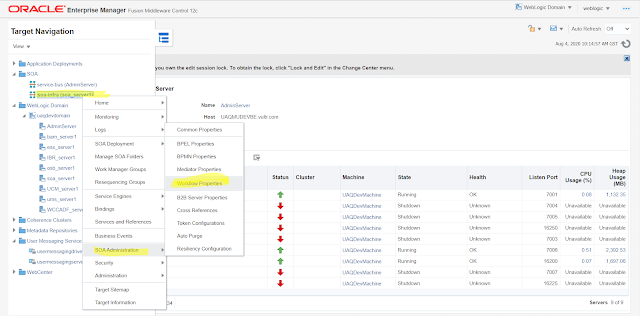
Open Enterprise Manager --> soa-infra --> SOA Administration --> Workflow Properties
Enter the email address and click Apply
Restart the Admin Server and Managed Servers
a. Stop soa_server1 Managed Server
b. Stop Admin Server
c. Stop Node Manager
e. Start Node Manager
f. Start Admin Server
g. Start soa_server1 Managed Server
Test the Email Notification
Open Enterprise Manager --> soa_infra --> Service Engines --> Human Workflow
Click on 'Notification Management' tab
Click on 'Send Test Notification' button
Enter the Test notification details
Send to : Enter email address
Channel : Email
Subject : Enter the Subject
Content : Enter the Email body
Check the soa_server1.out file for email sending activity
Can monitor the status as 'SENT'
Open email client and verify the email received.
Happy Development and Delivery !!!