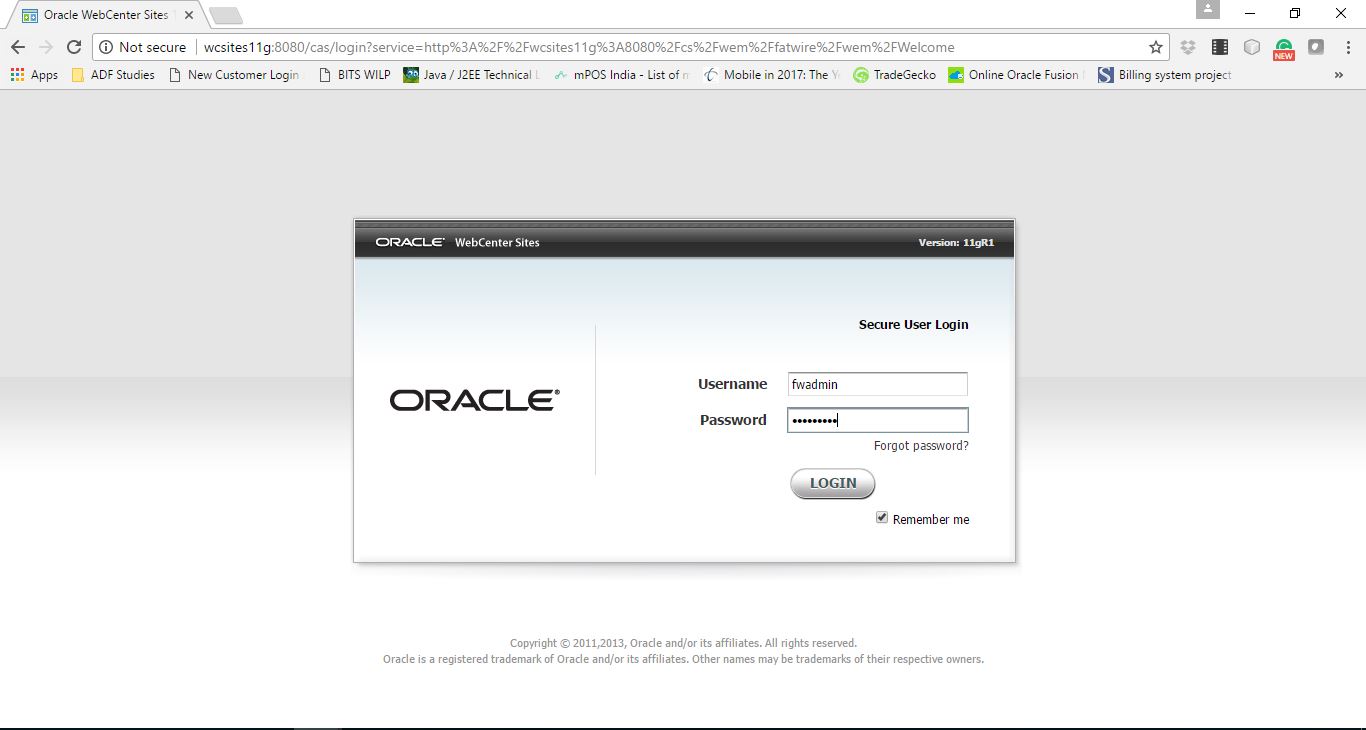
Webcenter Sites is a web content management and web experience management solution from Oracle for public content management websites. The content will be stored in the shared folder and its reference will be updated in the configured database.
I am using ‘oracle’ user for the installation and below are the user creation which is done for Oracle Database 11g (11.2.0.4) and Oracle Webcenter Sites.
[root@wcsites11g ~]# groupadd -g 501 oinstall
[root@wcsites11g ~]# groupadd -g 502 dba
[root@wcsites11g ~]# groupadd -g 503 oper
[root@wcsites11g ~]# groupadd -g 504 asmadmin
[root@wcsites11g ~]# useradd -u 1000 -g oinstall -G dba,oper,asmadmin oracle
[root@wcsites11g ~]# passwd oracle
Changing password for user oracle.
New password:
Retype new password:
passwd: all authentication tokens updated successfully.
[root@wcsites11g ~]#
Below are my Directory structure used for the entire installation process.
1. Directory Structure
a. /u01 – Contains all the application related information
i. /u01/java/jdk1.7.0_79/ - Java installation Path
ii. /u01/app/ - Database installation Path
iii. /u01/sites/apache-tomcat-7.0.65 – Apache Tomcat Installation Path
iv. /u01/sites/sites – Webcenter Sites Installation Path
v. /u01/sw/ - All the software installable including webcenter sites
2. Host Entries
[oracle@wcsites11g ~]$ cat /etc/hosts
127.0.0.1 localhost localhost.localdomain localhost4 localhost4.localdomain4
192.168.2.198 wcsites11g
::1 localhost localhost.localdomain localhost6 localhost6.localdomain6
[oracle@wcsites11g ~]$
Below are the pre-requisites for the Webcenter Sites 11.1.1.8.0 installation.
1. Machine/Virtual machine with Operating system installed.
a. Here, I am using Oracle Enterprise Linux 6.9
[root@wcsites11g sites]# cat /etc/oracle-release
Oracle Linux Server release 6.9
2. Install Java
a. Here, I have installed jdk1.7.0_79
[oracle@wcsites11g java]# pwd
/u01/java
[oracle@wcsites11g java]# ls
jdk1.7.0_79
b. Configure JAVA_HOME and PATH in /etc/profile with root user.
JAVA_HOME=/u01/java/jdk1.7.0_79;
export JAVA_HOME
PATH=/u01/java/jdk1.7.0_79/bin:$PATH;
3. Install Database and configure Database.
[oracle@wcsites11g ~]$ cd ~
[oracle@wcsites11g ~]$ vi .bash_profile
# .bash_profile
# Get the aliases and functions
if [ -f ~/.bashrc ]; then
. ~/.bashrc
fi
PATH=$PATH:$HOME/bin;export PATH
export PATH
ORACLE_BASE=/u01/app/oracle;export ORACLE_BASE
ORACLE_HOME=$ORACLE_BASE/product/11.2.0/dbhome_1;export ORACLE_HOME
ORACLE_SID=fmwdb11g;export ORACLE_SID
LD_LIBRARY_PATH=$ORACLE_HOME/lib;export LD_LIBRARY_PATH
PATH=$ORACLE_HOME/bin:$PATH;export PATH
4. Set the Permission for the Java, installation directory and installer with oracle:oinstall permission
[root@wcsites11g u01]# ls -lrt
total 16
drwxr-xr-x. 3 root root 4096 May 13 13:29 java
drwxr-xr-x. 5 oracle dba 4096 May 14 21:57 app
drwxr-xr-x. 3 root root 4096 May 15 16:20 sw
drwxr-xr-x 2 root root 4096 May 22 11:01 sites
[root@wcsites11g u01]# chown -Rf oracle:oinstall java/
[root@wcsites11g u01]# chown -Rf oracle:oinstall sw/
[root@wcsites11g u01]# chown -Rf oracle:oinstall sites/
[root@wcsites11g u01]# ls -lrt
total 16
drwxr-xr-x. 3 oracle oinstall 4096 May 13 13:29 java
drwxr-xr-x. 5 oracle dba 4096 May 14 21:57 app
drwxr-xr-x. 3 oracle oinstall 4096 May 15 16:20 sw
drwxr-xr-x 2 oracle oinstall 4096 May 22 11:01 sites
[root@wcsites11g u01]#
5. Install Tomcat.
a. The supported tomcat versions are Tomcat 7.0.42+ till Tomcat 7.0.65 and the preferred tomcat version is apache-tomcat-7.0.65.
b. Download apache-tomcat-7.0.65.zip from the below path.
c. Copy apache-tomcat-7.0.65.zip to /u01/sites/ path


d. Change the permission of the apache-tomcat-7.0.65.zip
[oracle@wcsites11g sites]$ ls
apache-tomcat-7.0.65.zip
[oracle@wcsites11g sites]$ chmod -Rf 755 apache-tomcat-7.0.65.zip
[oracle@wcsites11g sites]$ ls
apache-tomcat-7.0.65.zip
[oracle@wcsites11g sites]$
e. Unzip the Apache Tomcat
[oracle@wcsites11g sites]$ unzip apache-tomcat-7.0.65.zip
[oracle@wcsites11g sites]$ ls -lrt
total 9228
drwxr-xr-x 9 oracle oinstall 4096 Oct 9 2015 apache-tomcat-7.0.65
-rwxr-xr-x 1 oracle oinstall 9442217 May 21 15:57 apache-tomcat-7.0.65.zip
f. Edit the server.xml and update the Datasource entries for Webcenter Sites installation
i. Change server.xml
[oracle@wcsites11g conf]$ cd /u01/sites/apache-tomcat-7.0.65/conf
[oracle@wcsites11g conf]$ ls
catalina.policy catalina.properties context.xml logging.properties server.xml tomcat-users.xml web.xml
[oracle@wcsites11g conf]$
Below are the content need to be updated in the server.xml. Replace
<Context path="/cs" docBase="cs" reloadable="true" crossContext="true">
<Resource name="csDataSource" auth="Container" type="javax.sql.DataSource"
maxActive="100" msxIdle="30"
username="<DB USER>"
password="<PASSWORD>"
driverClassName="oracle.jdbc.driver.OracleDriver"
url="jdbc:oracle:thin:@//<IP>:<PORT>/<SID>"/>
</Context>
Entries in my VM:-
<Context path="/cs" docBase="cs" reloadable="true" crossContext="true">
<Resource name="csDataSource" auth="Container" type="javax.sql.DataSource"
maxActive="100" msxIdle="30"
username="CSUSER"
password="welcome1"
driverClassName="oracle.jdbc.driver.OracleDriver"
url="jdbc:oracle:thin:@//192.168.1.24:1521/FMWDB11G"/>
</Context>

ii. Create the user in the database.
1. Start the database
[oracle@wcsites11g conf]$ sqlplus "/as sysdba"
SQL*Plus: Release 11.2.0.4.0 Production on Mon May 22 11:37:12 2017
Copyright (c) 1982, 2013, Oracle. All rights reserved.
Connected to an idle instance.
SQL> startup
ORACLE instance started.
Total System Global Area 2655657984 bytes
Fixed Size 2256192 bytes
Variable Size 637534912 bytes
Database Buffers 1996488704 bytes
Redo Buffers 19378176 bytes
Database mounted.
Database opened.
SQL>
2. Remove the CSUSER if already created
SQL> DROP USER CSUSER CASCADE;
User dropped.
SQL>
3. Create CSUSER
SQL> CREATE USER CSUSER IDENTIFIED BY welcome1 DEFAULT TABLESPACE USERS TEMPORARY TABLESPACE TEMP;
User created.
SQL>
4. Grant the Privileges
SQL> GRANT CREATE TABLE, CREATE VIEW, CREATE SESSION, UNLIMITED TABLESPACE TO CSUSER;
Grant succeeded.
SQL>
5. Commit the changes
SQL> commit;
Commit complete.
SQL>

iii. Start the Listener
[oracle@wcsites11g ~]$ lsnrctl start
LSNRCTL for Linux: Version 11.2.0.4.0 - Production on 22-MAY-2017 11:56:50
Copyright (c) 1991, 2013, Oracle. All rights reserved.
Starting /u01/app/oracle/product/11.2.0/dbhome_1/bin/tnslsnr: please wait...
TNSLSNR for Linux: Version 11.2.0.4.0 - Production
System parameter file is /u01/app/oracle/product/11.2.0/dbhome_1/network/admin/listener.ora
Log messages written to /u01/app/oracle/diag/tnslsnr/wcsites11g/listener/alert/log.xml
Listening on: (DESCRIPTION=(ADDRESS=(PROTOCOL=tcp)(HOST=wcsites11g)(PORT=1521)))
Connecting to (ADDRESS=(PROTOCOL=tcp)(HOST=)(PORT=1521))
STATUS of the LISTENER
------------------------
Alias LISTENER
Version TNSLSNR for Linux: Version 11.2.0.4.0 - Production
Start Date 22-MAY-2017 11:56:50
Uptime 0 days 0 hr. 0 min. 1 sec
Trace Level off
Security ON: Local OS Authentication
SNMP OFF
Listener Parameter File /u01/app/oracle/product/11.2.0/dbhome_1/network/admin/listener.ora
Listener Log File /u01/app/oracle/diag/tnslsnr/wcsites11g/listener/alert/log.xml
Listening Endpoints Summary...
(DESCRIPTION=(ADDRESS=(PROTOCOL=tcp)(HOST=wcsites11g)(PORT=1521)))
The listener supports no services
The command completed successfully
[oracle@wcsites11g ~]$
iv. Create the setenv.sh in the /u01/sites/apache-tomcat-7.0.65/bin/ path for setting up classpath.
1. Add the below entries
CATALINA_OPTS="-Xms2048m -Xmx16834m -XX:MaxPermSize=192m -Dfile.encoding=UTF-8 -Dnet.sf.ehcache.enableShutdownHook=true -Djava.net.preferIPv4Stack=true -Duser.timezone=UTC"
CLASSPATH="/u01/sites/sites/bin:/u01/java/jdk1.7.0_80/lib/tools.jar -Dorg.apache.commons.httpclient.HttpMethodBase=ERROR
-Dcom.fatwire.logging.cs=TRACE
-Dlogging.file=/u01/sites/sites/logs/sites.log
-Dorg.apache.commons.logging.Log=com.fatwire.cs.core.logging.TraditionalLog
-Dlogging.per-client-log=false "


v. Set the permission to apache tomcat directory
[oracle@wcsites11g bin]$ ls -lrt
total 792
-rw-r--r-- 1 oracle oinstall 1904 Oct 9 2015 startup.sh
[oracle@wcsites11g sites]$ ls -lrt
total 9232
drwxr-xr-x 9 oracle oinstall 4096 Oct 9 2015 apache-tomcat-7.0.65
-rwxr-xr-x 1 oracle oinstall 9442217 May 21 15:57 apache-tomcat-7.0.65.zip
drwxr-xr-x 2 oracle oinstall 4096 May 22 12:00 sites
[oracle@wcsites11g sites]$ chmod -Rf 755 apache-tomcat-7.0.65
[oracle@wcsites11g sites]$
[oracle@wcsites11g bin]$ ls -lrt
total 792
-rwxr-xr-x 1 oracle oinstall 1904 Oct 9 2015 startup.sh
vi. Copy ojdbc6.jar in the /u01/sites/apache-tomcat-7.0.65/lib/ directory
[oracle@wcsites11g lib]$ ls ojdbc6.jar
ojdbc6.jar
[oracle@wcsites11g lib]$ scp ojdbc6.jar oracle@192.168.2.198:/u01/sites/apache-tomcat-7.0.65/lib/
The authenticity of host '192.168.2.198 (192.168.2.198)' can't be established.
RSA key fingerprint is 23:87:f7:84:da:b0:fb:44:e8:bc:5d:db:dd:4a:e5:e5.
Are you sure you want to continue connecting (yes/no)? yes
Warning: Permanently added '192.168.2.198' (RSA) to the list of known hosts.
oracle@192.168.2.198's password:
ojdbc6.jar 100% 2062KB 2.0MB/s 00:00
[oracle@wcsites11g lib]$
vii. Start the tomcat
[oracle@wcsites11g bin]$ sh setenv.sh
[oracle@wcsites11g bin]$ sh startup.sh
Using CATALINA_BASE: /u01/sites/apache-tomcat-7.0.65
Using CATALINA_HOME: /u01/sites/apache-tomcat-7.0.65
Using CATALINA_TMPDIR: /u01/sites/apache-tomcat-7.0.65/temp
Using JRE_HOME: /u01/java/jdk1.7.0_79
Using CLASSPATH: /u01/sites/sites/bin:/u01/java/jdk1.7.0_80/lib/tools.jar -Dorg.apache.commons.httpclient.HttpMethodBase=ERROR
-Dcom.fatwire.logging.cs=TRACE
-Dlogging.file=/u01/sites/sites/logs/sites.log
-Dorg.apache.commons.logging.Log=com.fatwire.cs.core.logging.TraditionalLog
-Dlogging.per-client-log=false :/u01/sites/apache-tomcat-7.0.65/bin/bootstrap.jar:/u01/sites/apache-tomcat-7.0.65/bin/tomcat-juli.jar
Tomcat started.
When we start the tomcat, we can see that below error is coming in catalina.out file and we need to create the cs director in tomcat webapps folder.
WARNING: Failed to retrieve JNDI naming context for container [StandardEngine[Catalina].StandardHost[localhost].StandardContext[/cs]] so no cleanup was performed for that container
javax.naming.NamingException: No naming context bound to this class loader
[oracle@wcsites11g ~]$cd /u01/sites/apache-tomcat-7.0.65/webapps
[oracle@wcsites11g webapps]$ mkdir cs
viii. Start the tomcat again and check the log file
[oracle@wcsites11g bin]$ cd /u01/sites/apache-tomcat-7.0.65/bin/
[oracle@wcsites11g bin]$ sh setenv.sh
[oracle@wcsites11g bin]$ sh startup.sh
Using CATALINA_BASE: /u01/sites/apache-tomcat-7.0.65
Using CATALINA_HOME: /u01/sites/apache-tomcat-7.0.65
Using CATALINA_TMPDIR: /u01/sites/apache-tomcat-7.0.65/temp
Using JRE_HOME: /u01/java/jdk1.7.0_79
Using CLASSPATH: /u01/sites/sites/bin:/u01/java/jdk1.7.0_80/lib/tools.jar -Dorg.apache.commons.httpclient.HttpMethodBase=ERROR
-Dcom.fatwire.logging.cs=TRACE
-Dlogging.file=/u01/sites/sites/logs/sites.log
-Dorg.apache.commons.logging.Log=com.fatwire.cs.core.logging.TraditionalLog
-Dlogging.per-client-log=false :/u01/sites/apache-tomcat-7.0.65/bin/bootstrap.jar:/u01/sites/apache-tomcat-7.0.65/bin/tomcat-juli.jar
Tomcat started.
[oracle@wcsites11g bin]$

Once all the pre-requisites are done, we can start the webcenter sites installation.
1. Start the Webcenter sites installation with oracle user
[oracle@wcsites11g bin]$ cd /u01/sw/WebCenterSites_11.1.1.8.0/WCS_Sites/Sites
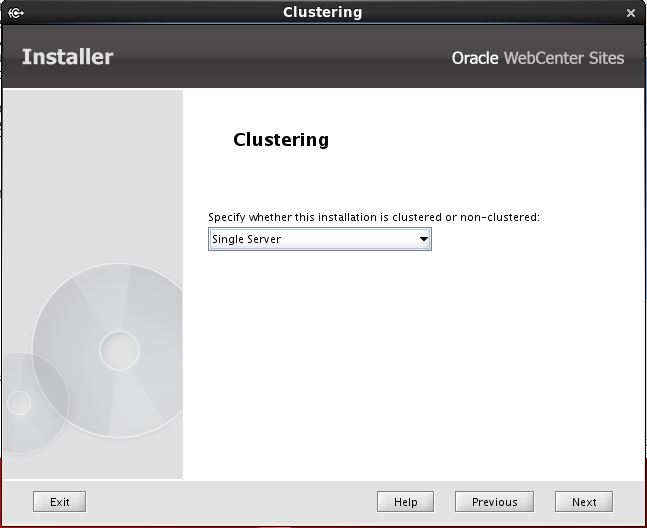
[oracle@wcsites11g Sites]$ sh csInstall.sh -Dcs.installer=true




2. Stop the Tomcat Server
[oracle@wcsites11g bin]$ cd /u01/sites/apache-tomcat-7.0.65/bin/
[oracle@wcsites11g bin]$ sh shutdown.sh -force
3. Start the Tomcat Server
[oracle@wcsites11g bin]$ cd /u01/sites/apache-tomcat-7.0.65/bin/
[oracle@wcsites11g bin]$ sh startup.sh
4. Continue the Installation


5. Access the URL and check the webcenter sites admin site.